
PRGRM GUIDE / 5 min read
Design your program PDF
Use Pages, Add content, Design, and Brand to turn your workouts into a finished coaching document.
Navigate your document
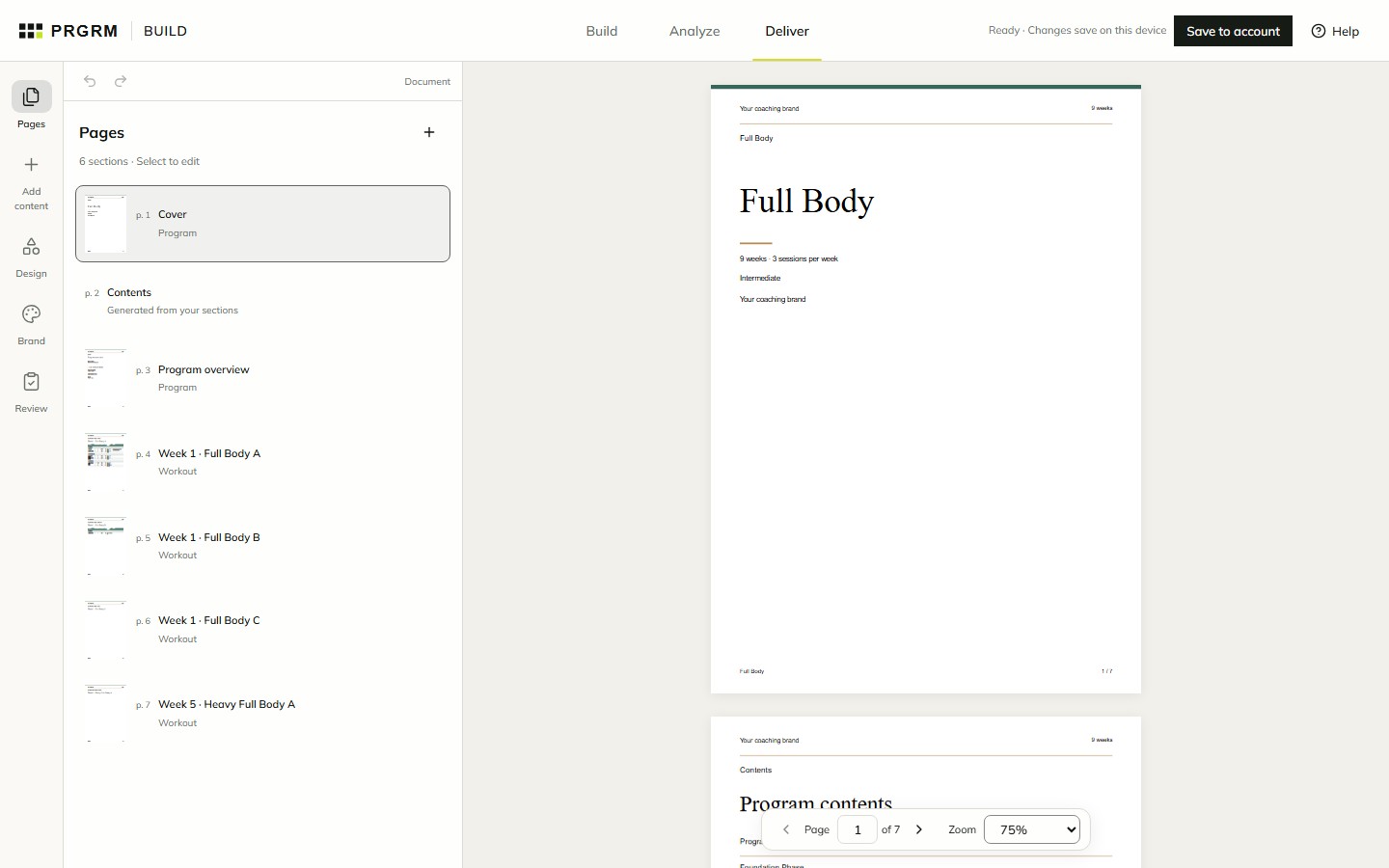
Open Deliver from the builder header. On desktop, the tools and page navigator sit on the left and the generated PDF fills the preview area on the right.
Choose Pages to see your cover, contents, overview, workouts, and custom sections. Select a section to edit it; use Back to pages to return to the list. Reorder sections in the navigator to change the reading order.
Add coaching content
Use Add content for coaching material around your workouts. Introduce the program, explain technique, or add instructions for the athlete.
Custom content supports text, images, callouts, teaching tables, columns, and page breaks. Use the block controls to add and arrange content. Review each section in the generated PDF as you work.
Choose layouts and branding
Open Design for document layouts and style choices. Select an individual section in Pages for its title, layout, and visibility options.
Open Brand to adjust your identity, colors, fonts, and logo. Add images where the selected layout supports them, then check how they fit in the preview. Use the document’s undo and redo controls to revisit design changes.
Preview and save
The preview is the generated PDF, including pagination. Use its page controls, zoom, and contents links to inspect the document. Wait for the latest preview after a change.
Watch the design save status in the header. Anonymous work saves on this device; account-backed designs save with your account. Check Review before leaving or publishing.
Next, review the document, choose your sample, and export finished files.