
PRGRM GUIDE / 5 min read
Add exercises and prescriptions
Find an exercise, set reps and intensity, and add the details that make a session usable.
Find an exercise
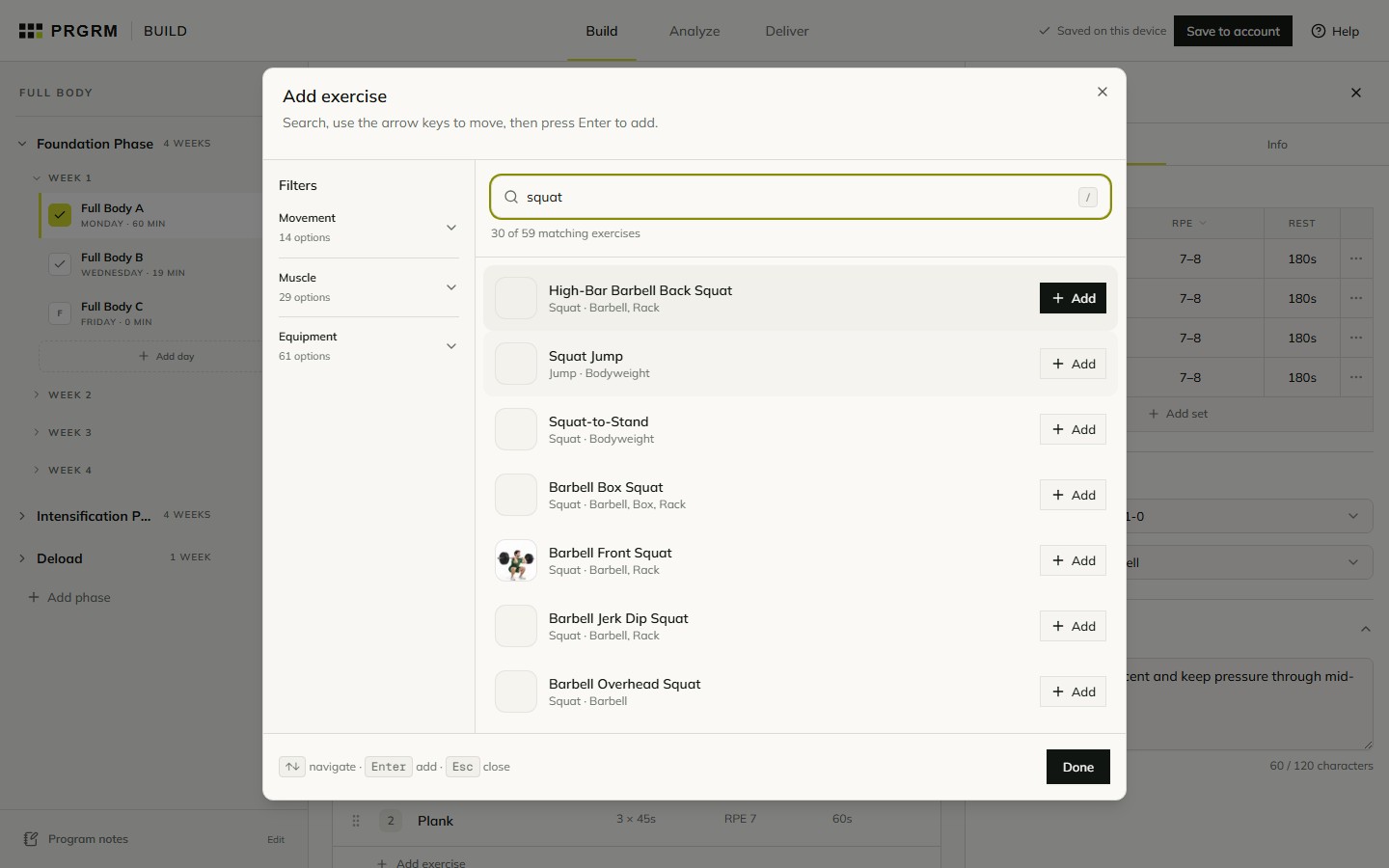
Exercises live inside training blocks. Open a session, add a training block if it is empty, then select Add exercise.
- Type an exercise name in Search exercises. Try “squat” to see matching movements.
- Narrow the list with the Movement, Muscle, or Equipment filters.
- Select Add beside the exercise you want. You can add more exercises before selecting Done.
Prefer the keyboard? The picker supports the arrow keys to move through results, Enter to add, and Escape to close. Build also shows the / shortcut beside Add exercise.
Edit the prescription
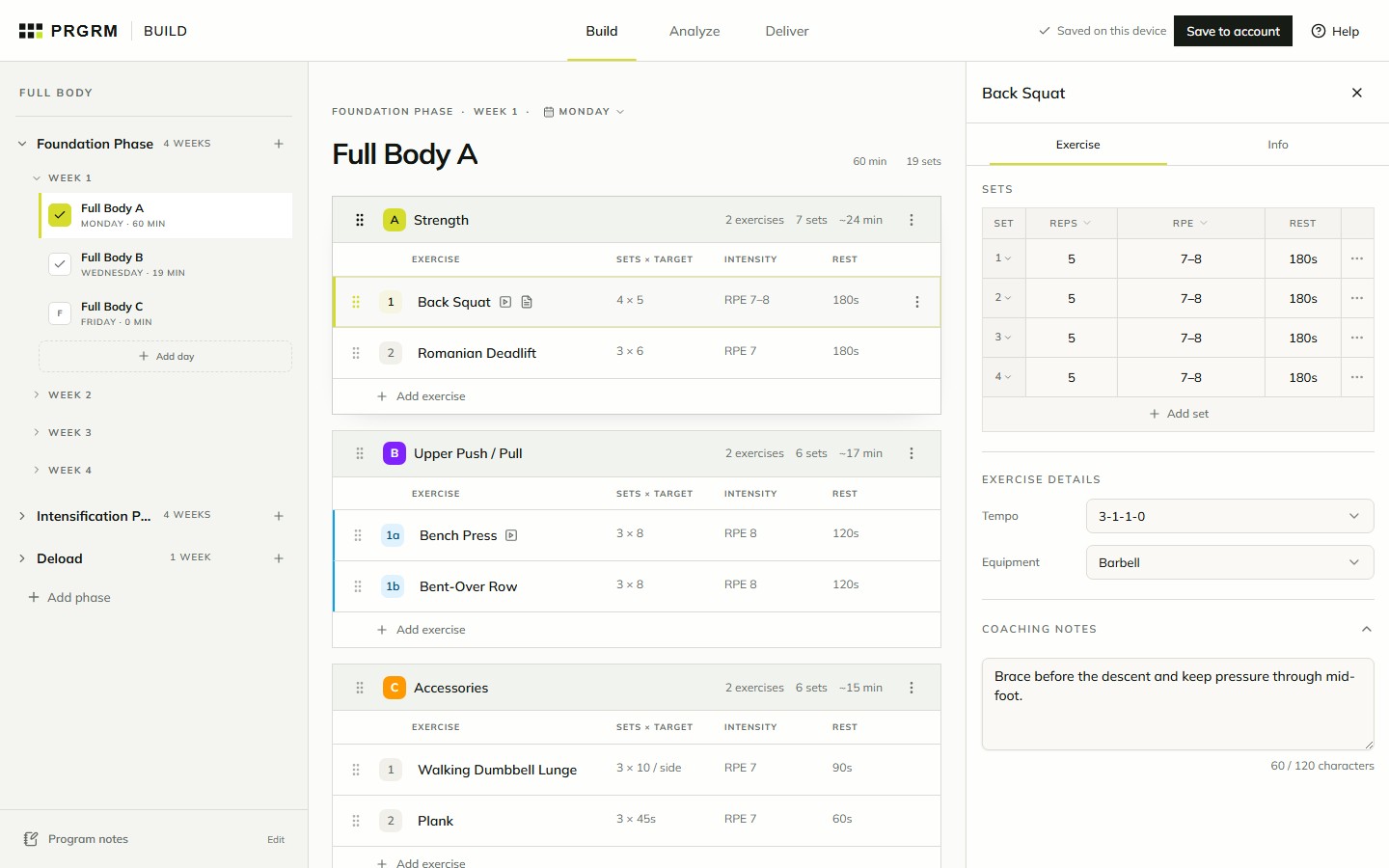
Select an exercise row in the session to open the inspector. In the Exercise tab, each row of the table represents one set.
- Target: choose the target type in the column heading and enter each set’s value. A rep range such as 8–12 is different from a fixed target.
- Intensity: choose the type and set a value for each row. The screenshot uses RPE.
- Rest: enter the rest interval for each set.
- Add set: adds another row. Use a row’s actions menu for its other options.
Add useful details
Below the set table, review Tempo and Equipment. Expand Coaching notes in the Exercise tab for exercise-specific instructions. Use the Info tab for the linked exercise information.
On desktop, drag the divider beside the inspector to give the set table more room. Select a set number to change its role, or open that set’s actions menu for additional options.
Close the inspector to return to the session. The exercise row gives you a compact summary of the prescription, while the session header summarizes sets and estimated time.